
User Guide
Willplay Wilyer v1.0
This Android application is a plug and play media player which can be extensively used by any brand to engage with the audience using digital content on premium looking screens. With Willplay App you can easily show content from your pendrive, this is a guide for you to help you get started and use this amazing tool for automation in media playing.
Specific Folder: “media”
App Works on Android version 4 and above
Application Media Display Auto Starts after power on/restart.
Looping Media.
No Internet Needed.
Media Updating/Changing with Single Click.
Runs for 8+ hours(Depends on Hardware Device also)
Clean Look of media in full screen.
Media play even after USB/Pendrive is removed.
Walkthrough on Windows - Insert Pendrive in your Windows PC.
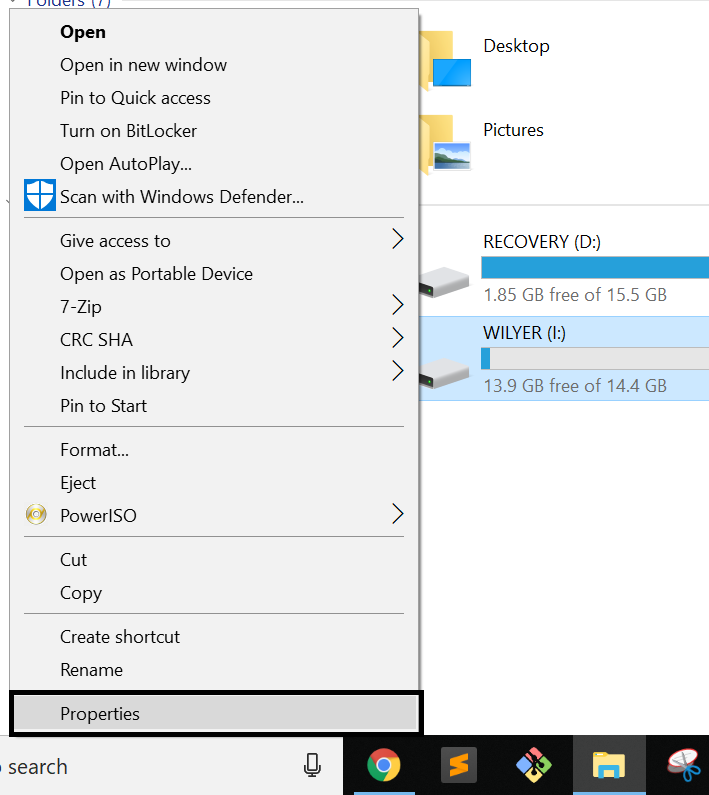
Right Click on USB Storage Display from Explorer and find Properties Option
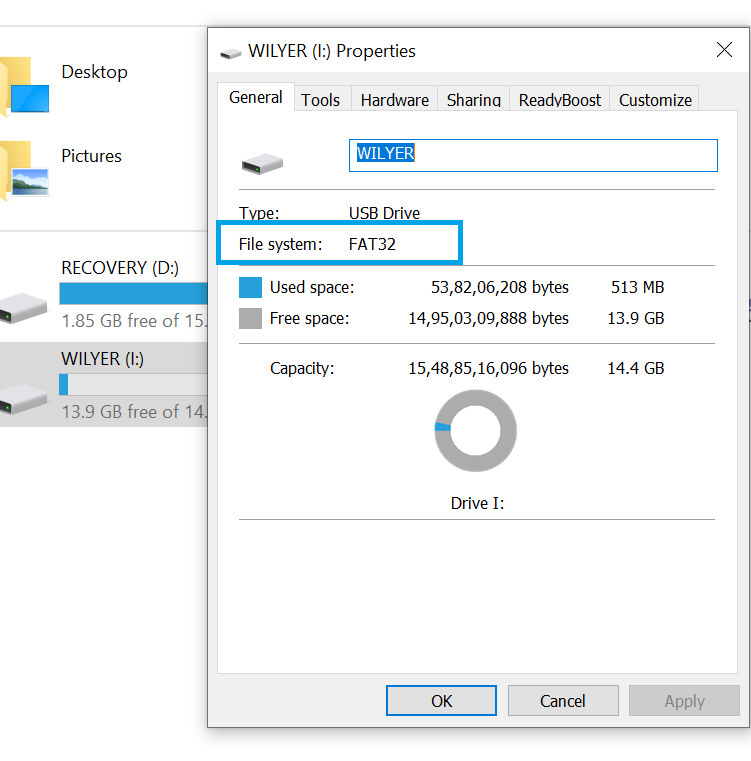
In the Properties Window you can see File System Name as Highlighted in image below
If you find FAT32 as your device’s file system you are ready for next steps else Go to Bottom of this Document to make your NTFS File system to FAT32 and get going.
Follow steps to configure usb for communication with Willplay
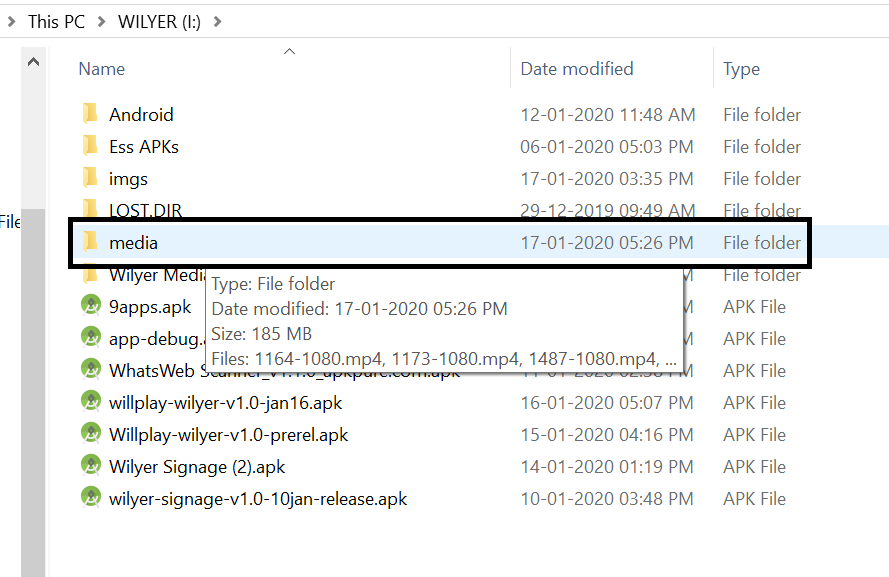
Open Top level directory of Pendrive by clicking on pendrive from Explorer
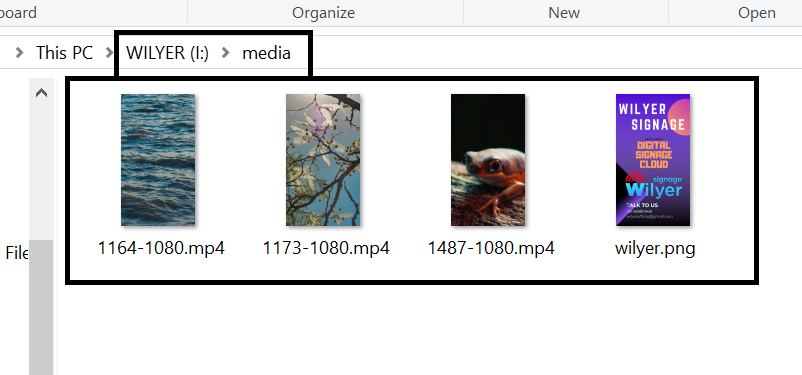
Make a folder named “media” this is folder is read by Willplay app for displaying media.
Open the folder and put the files you want to play in “media” folder. Supported File formats are : mp4,jpg,png .
Follow these easy steps : Launch Willplay App you just installed.
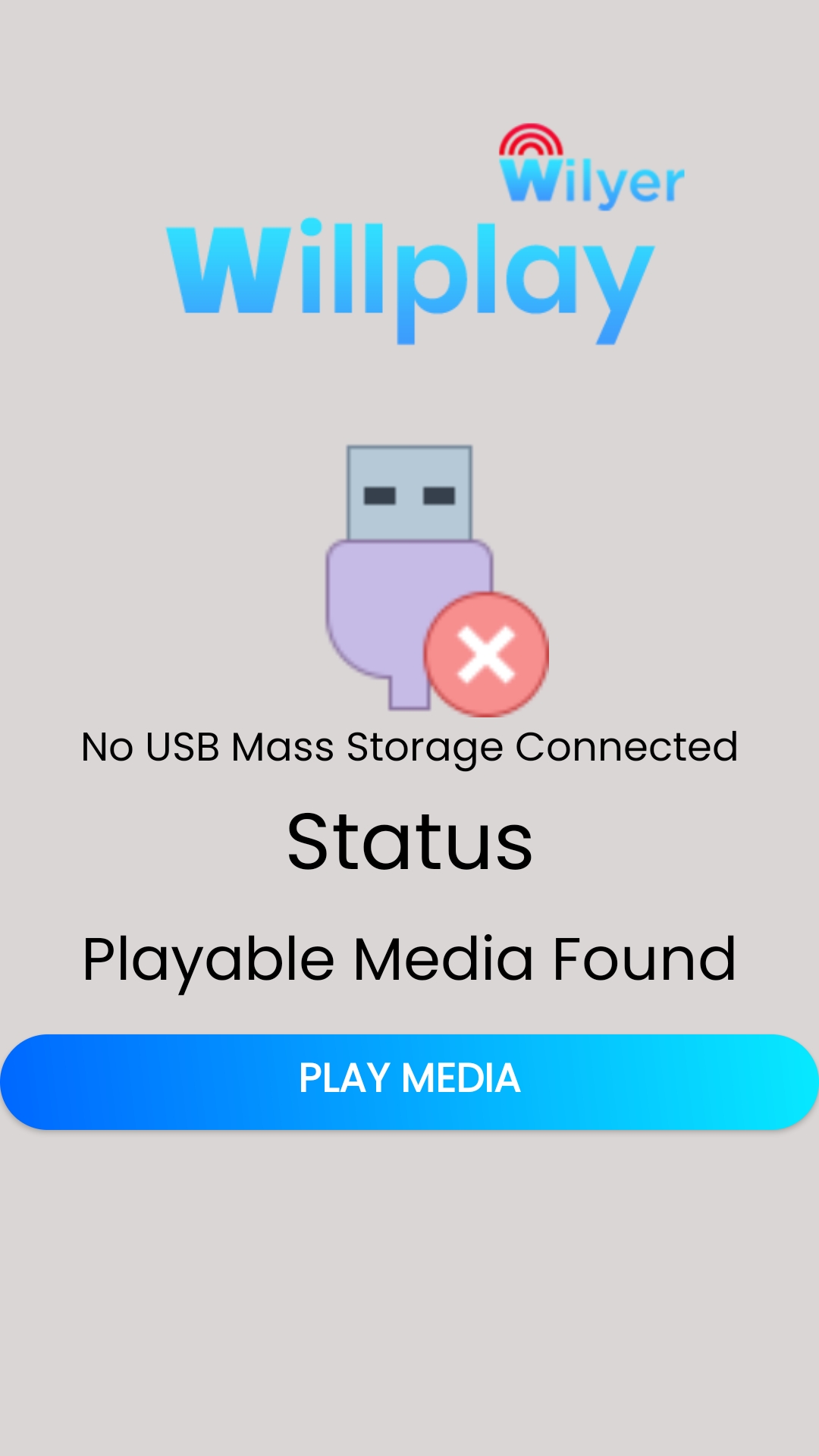
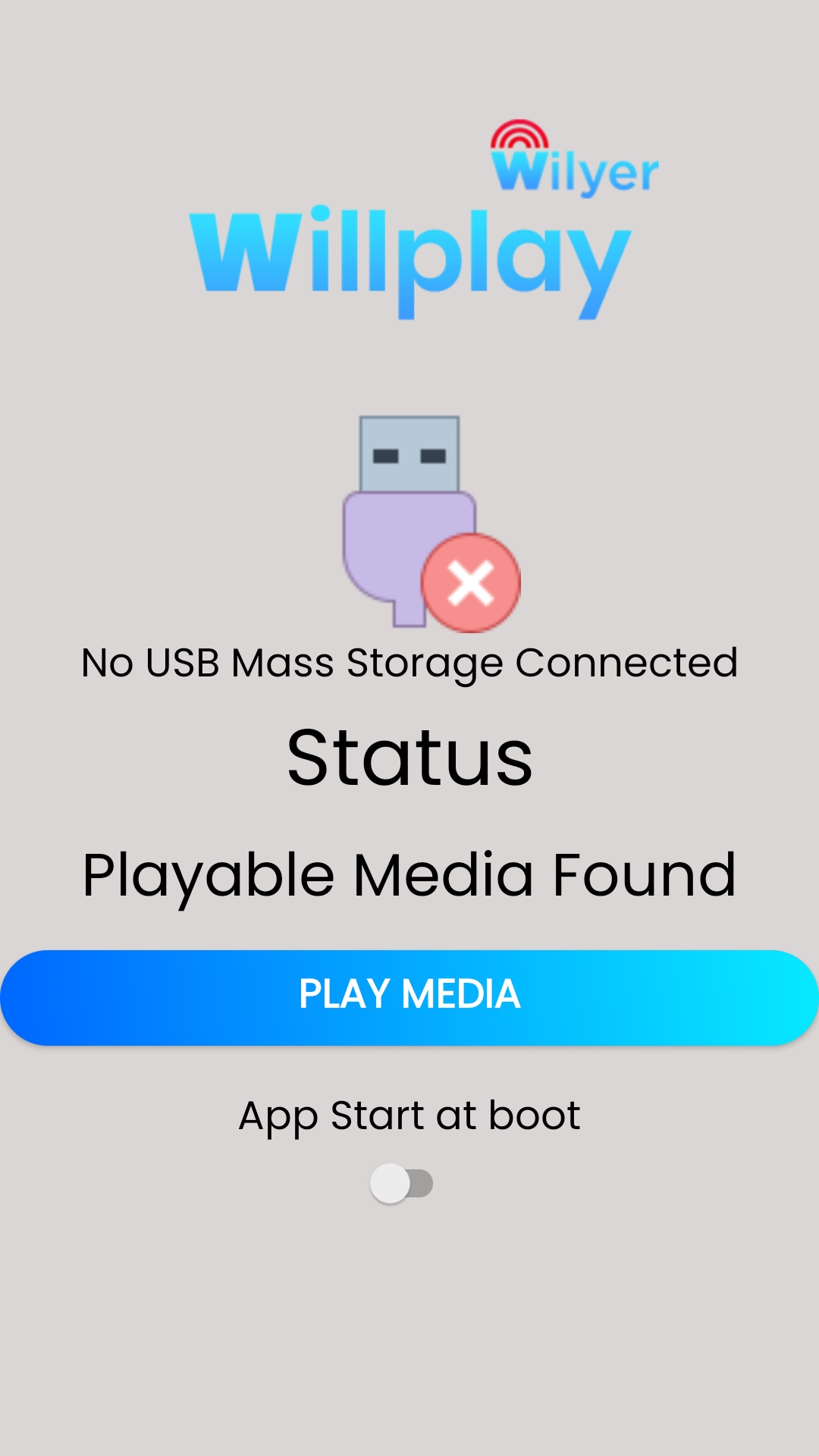
You Should see “No mass storage connected” if no usb connected
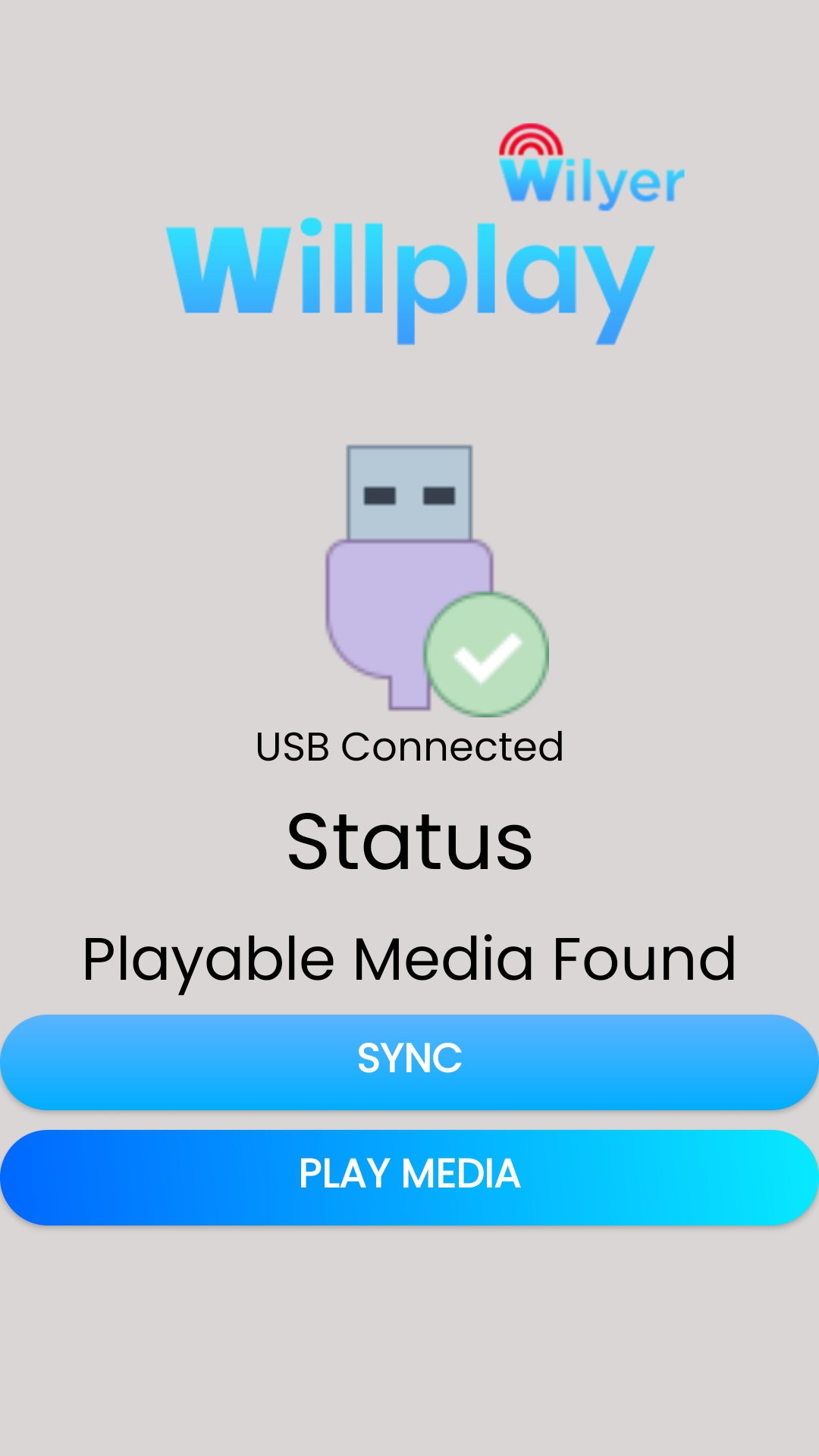
Connect your pendrive in usb port or use otg cable if you need to use on mobile devices
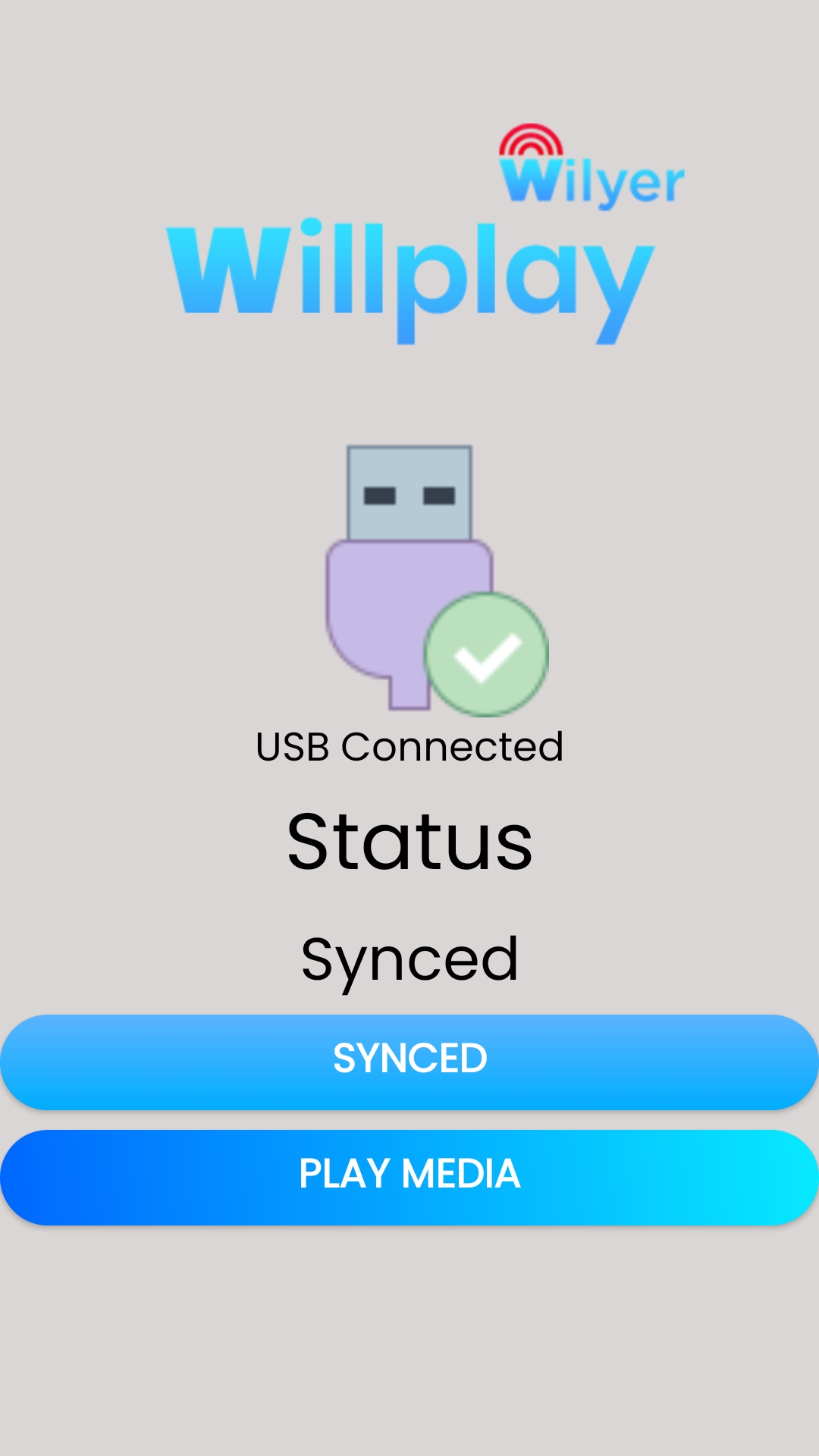
You should see “Sync” Button.
Click on the Sync Button
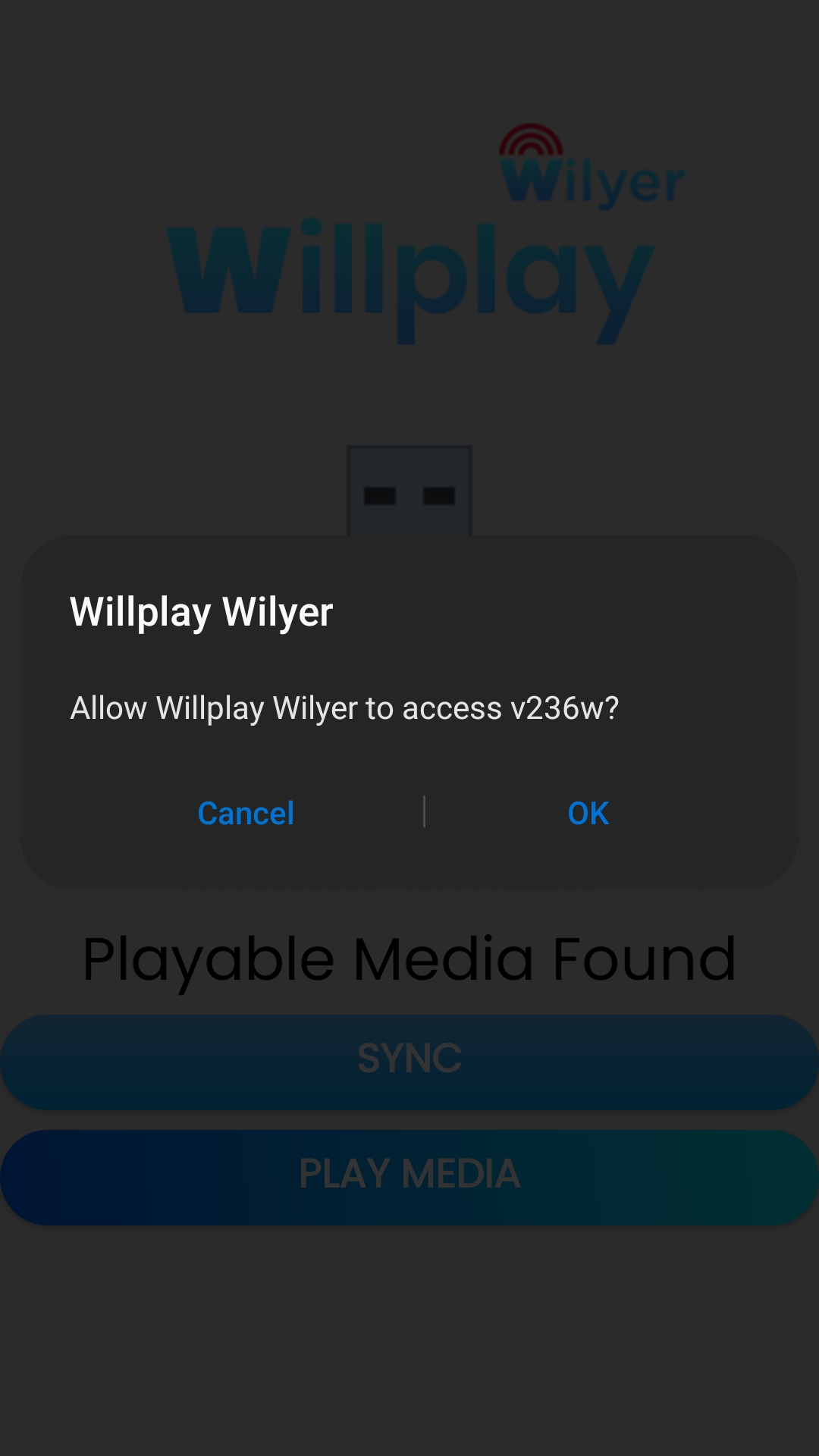
Note : Android Requires you to give permission to Willplay app to allow Willplay read the contents of USB/Pen Drive so you will need to press the sync button when you need to change the content.
Allow App to Proceed further by pressing OK or Allow
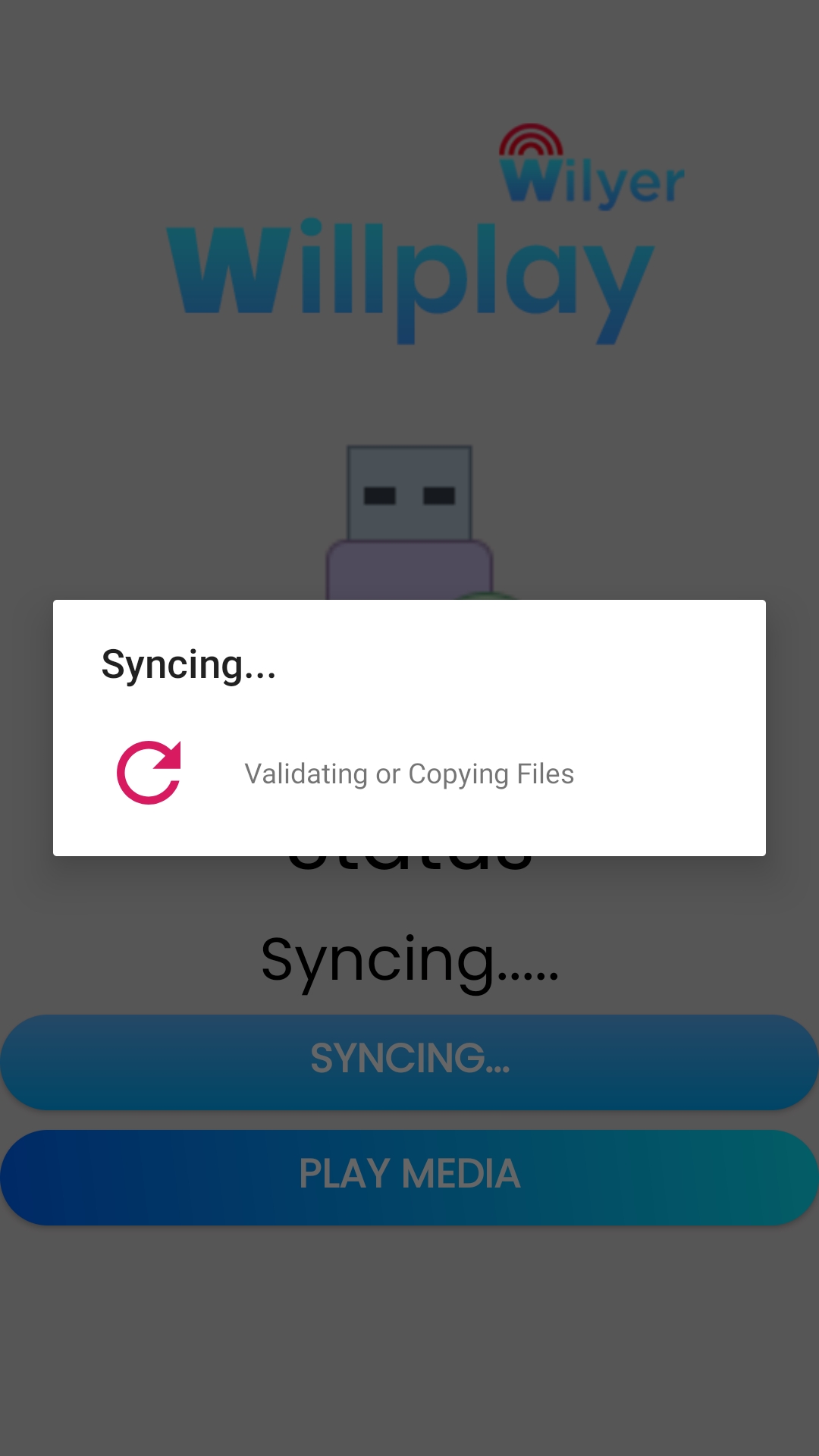
After you allow access to read pendrive contents Willplay will copy all the contents of “media” and sync with new data that was given in the pendrive.
Syncing Pop up means app is Copying files and Updating stored content… Please wait for Syncing to dismiss.
After Successful Sync Status will be “Synced”
Now you can press Play Media to start playing new content. Media Will play in sequence
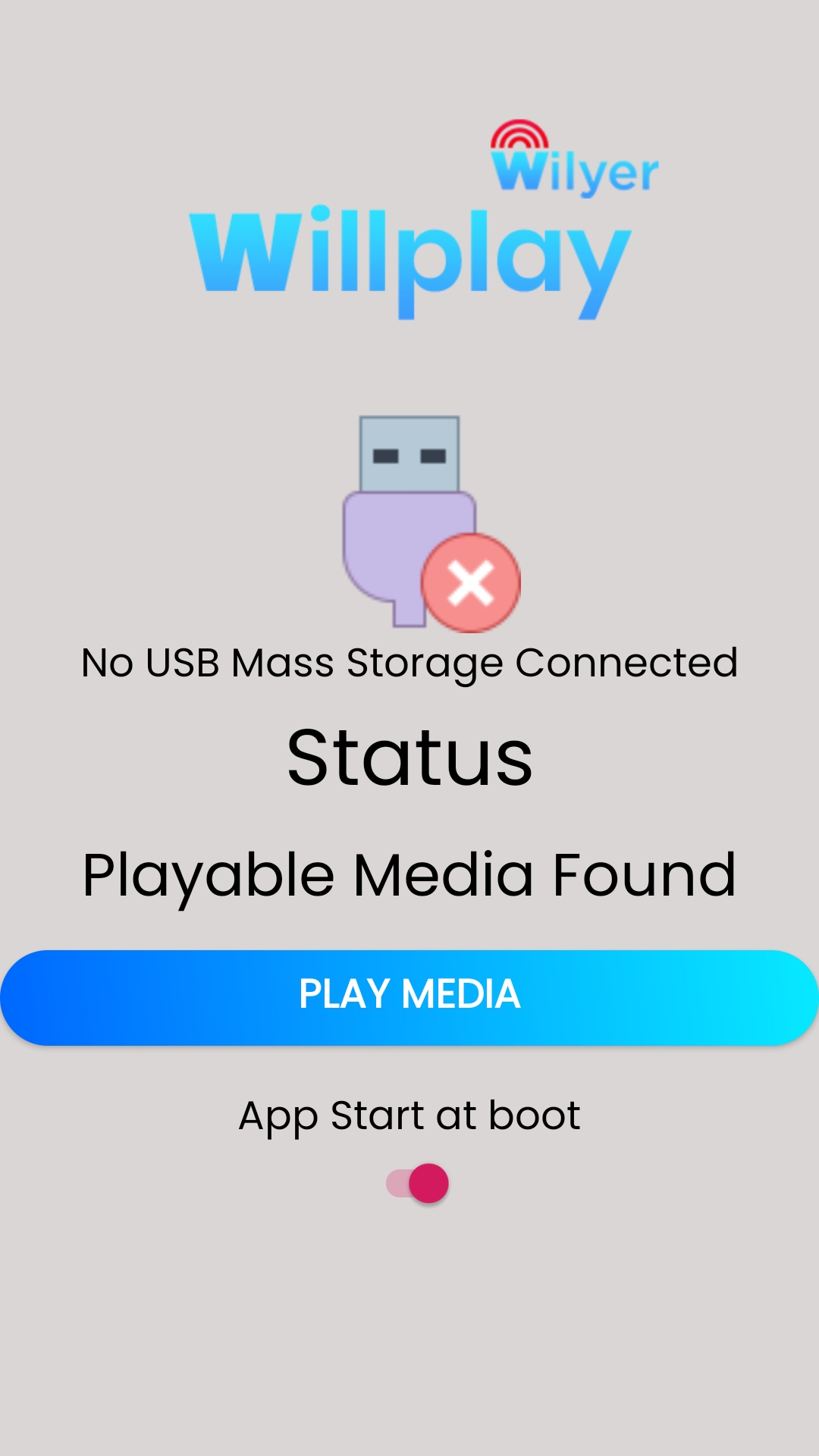
App Auto restart switch if turned off means app will not restart after the device boots up.
Switch on means app will launch after the device boots up.
Note : By Default the switch is turned off , means app will not auto launch after restart.
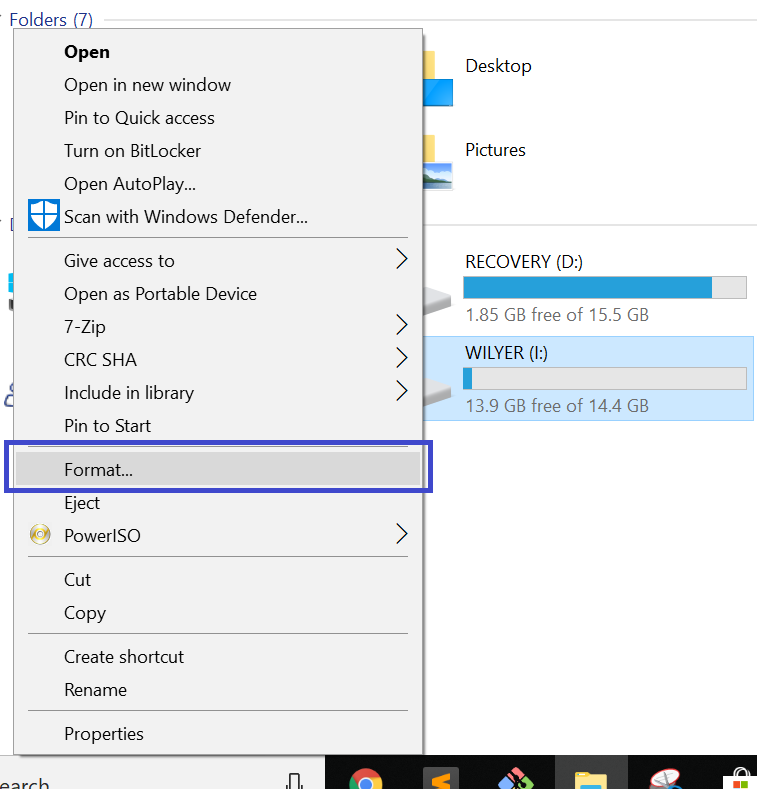
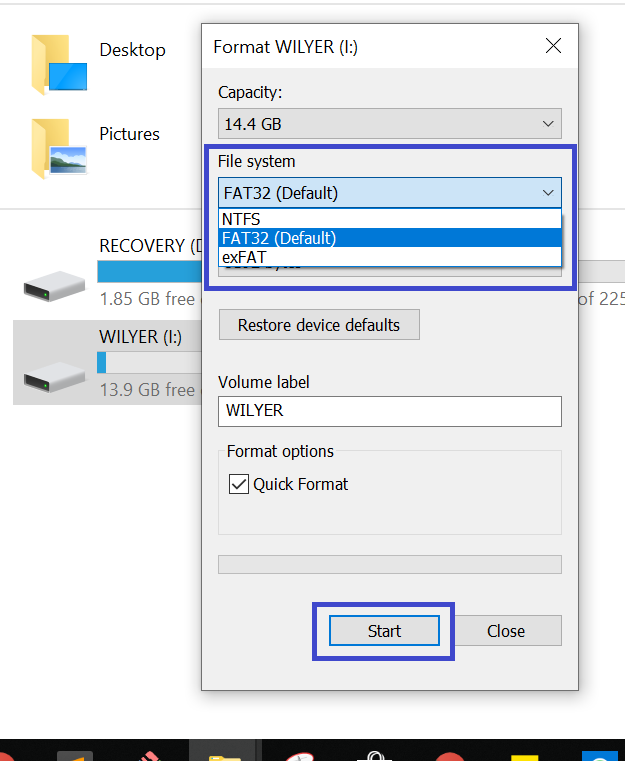
Right click on Pen Drive and find Format button.
Caution : Take a Backup of your pendrive contents before this action
Format The USB and set File system to FAT32
Company Name: Wilyer
Service Name: Willplay Wilyer
Contact Number: +918800581956 , +919910473828
Email: [email protected]
Address: V-11, Mapsko Casabella, Sector 82, Gurugram 122004, Haryana